
Describe the device. Keep control of the model.
Use your own AI agent with SPX MCP to turn requirements, protocol notes or device documentation into a reviewable YAML model. Start from a library example or draft a new device, then run it in SPX and check its behavior with your client.
You control the requirements and review the result. The model stays editable; you can inspect its attributes, behavior and protocol mappings before using it in a test.
From requirement to running device
Before you start: install SPX, start the environment and open the prepared workspace in your local AI agent. Follow the MCP connection guide if needed. The native installer prepares the workspace; you provide your own AI client.
Describe the task
Review the YAML
Run the device
Check the response
Example: an MQTT temperature sensor
Use the library's environment sensor model as a starting point. This example needs the MQTT package, a broker reachable from SPX and an MQTT client connected to that broker.
1. Give your agent a concrete task
Use SPX MCP and the environment sensor library model. Inspect its YAML and explain the temperature behavior and MQTT mappings. Prepare an instance with topic prefix
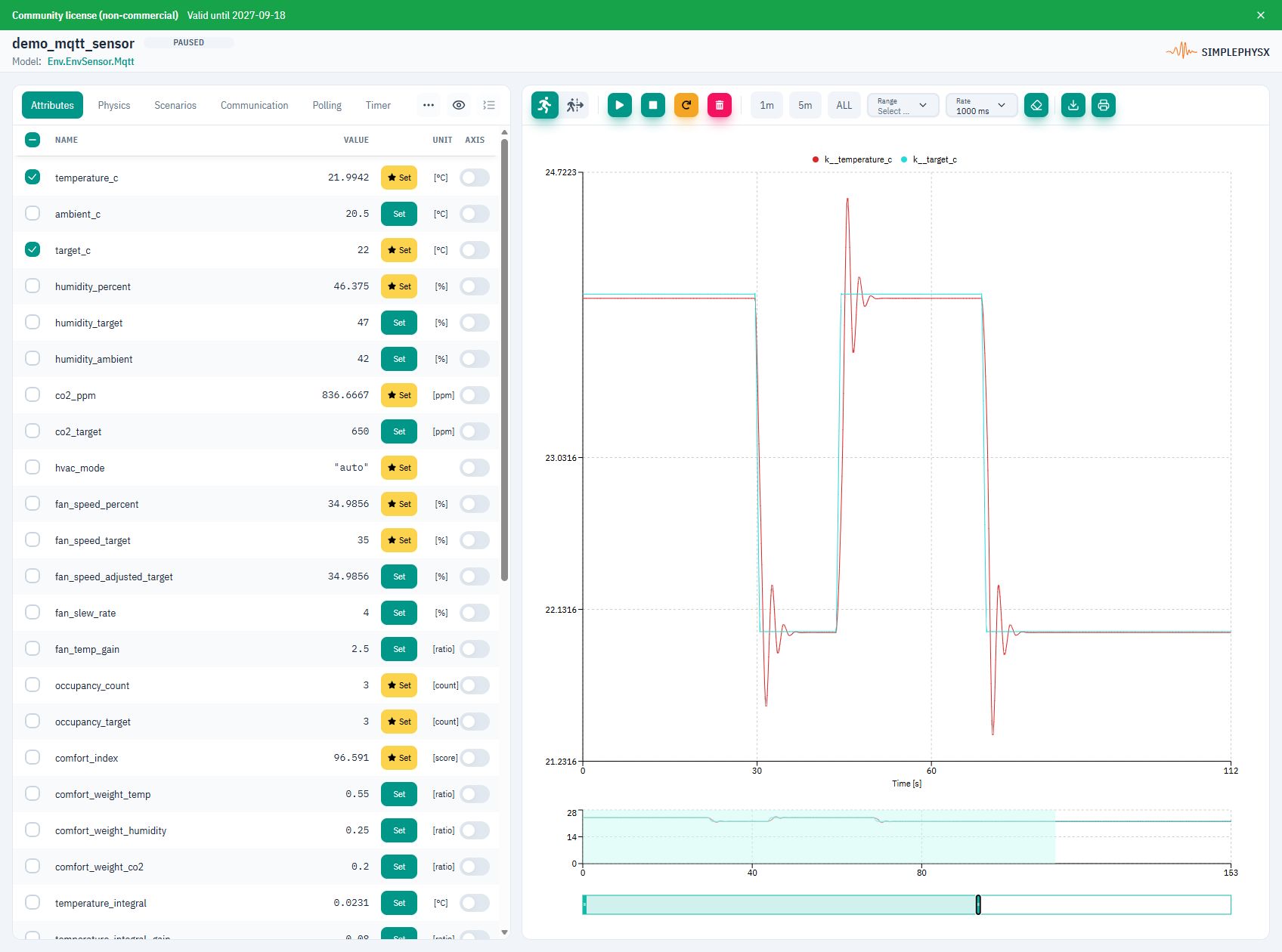
spx/demo/envusing my broker settings. Show the plan before creating it. Help me test a target change from 22°C to 24°C and back to 22°C. Report the topics, readbacks and observed response.
For a custom device, add its documented ranges, timing and failure behavior to the request. Ask the agent to identify assumptions and show proposed model changes before applying them.
2. Inspect the model
Check that measured temperature and target are separate attributes. This excerpt from the library YAML shows the two attributes to review; open the linked model for the full definition:
attributes:
  k__temperature_c:
    type: float
    default: 22.5
    unit: degC
  k__target_c:
    type: float
    default: 22.0
    unit: degC
The full YAML also defines the temperature dynamics and MQTT mappings. The setpoint command updates k__target_c; telemetry publishes the target and measured temperature separately. Review these parts together before running an agent's changes.
3. Verify through MQTT
Subscribe to spx/demo/env/telemetry/# before publishing. With retain=false, send plain text 24.0 to spx/demo/env/command/setpoint_c.
Success: spx/demo/env/telemetry/target_c reports 24°C, while spx/demo/env/telemetry/temperature_c changes over time. Send 22.0 to the same command topic and verify the target returns to 22°C. A successful publish alone does not confirm the device response.
Open the MQTT walkthrough for broker settings, topic mappings and client commands. When finished, stop the instance.
Review before you rely on it
- Behavior: check units, ranges, timing and assumptions against the source documentation.
- Communication: verify addresses or topics, payload formats and read/write mappings with your client.
- Repeatability: test the expected response, a failure case and recovery. Keep the reviewed YAML for reuse.
AI helps draft and refine the model. Validation still needs your engineering judgment and observed runtime results.
For other interfaces, see the Modbus, OPC UA, BACnet and KNX examples. Use the Model Language to review a draft, or Developers to explore the library and Python workflows. AI is optional; SPX also supports the browser UI and code-defined models.