
Start in three steps
Subscribe to a virtual workcell’s state and progress, then observe repeated production cycles in your OPC UA client.
Before you start: Install SPX with the OPC UA package and SPX UI. Have UaExpert or another OPC UA client ready. This guide uses the library’s production workcell model.
1. Create a virtual workcell
Open Instances → New instance. Select Process.Workcell.OpcUa, or your imported registry name. Use an unused name, such as demo_opcua_workcell; keep the default endpoint. Choose Create, then Start instance. Confirm RUNNING and open Communication → opcua_server.
Model not listed?
Download the library YAML linked above. In Models → Load model from file, import it under a registry name of your choice. Select that name in New instance. The dotted name in our screenshots is a registry label, not the YAML filename.
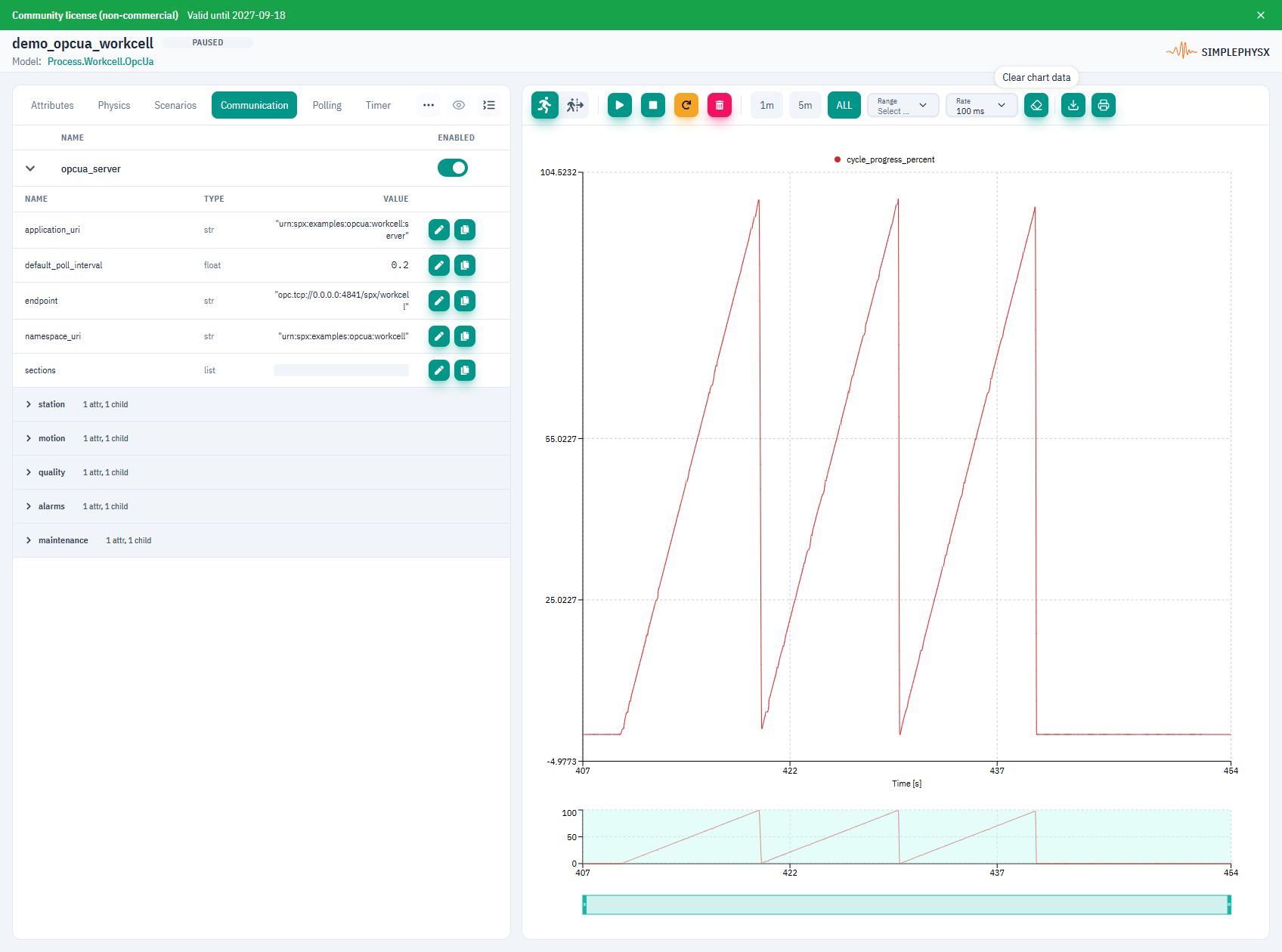
2. Connect and start a cycle
Replace SPX_HOST below with the host address reachable from your client. For Docker, publish port 4841; if your host port differs, use it in the endpoint URL.
For this local demo, connect with Anonymous / NoSecurity. Subscribe to Objects → Workcell → State and Objects → Workcell → Cycle → Progress. Use the communication reference for browse paths and data types. In SPX Attributes, set target_cycle_time_s to 10 for this exercise (the default is 22). Select cycle_progress_percent and a 100 ms chart rate. Then, in Scenarios, click Start auto_cycle scenario. Let the 30-second scenario finish.
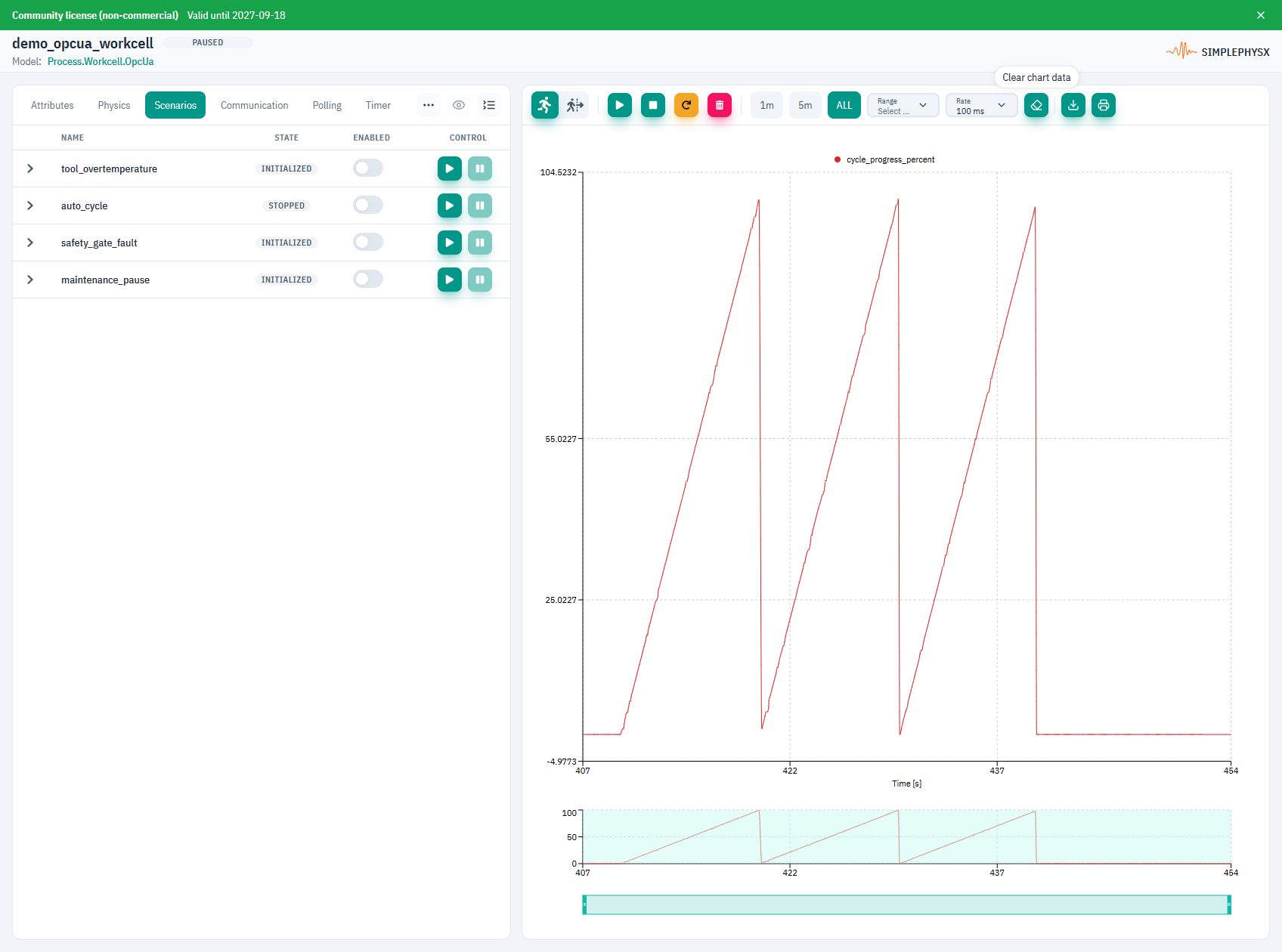
3. Verify live updates
Success: State changes from idle to running, and Progress repeatedly rises and resets. After the timed scenario, State returns to idle. Keep the subscription open for the full run to observe each rise and reset.
Inspect cycle_progress_percent on a shared % axis. Pause after the run and choose ALL to see the full cycle history.
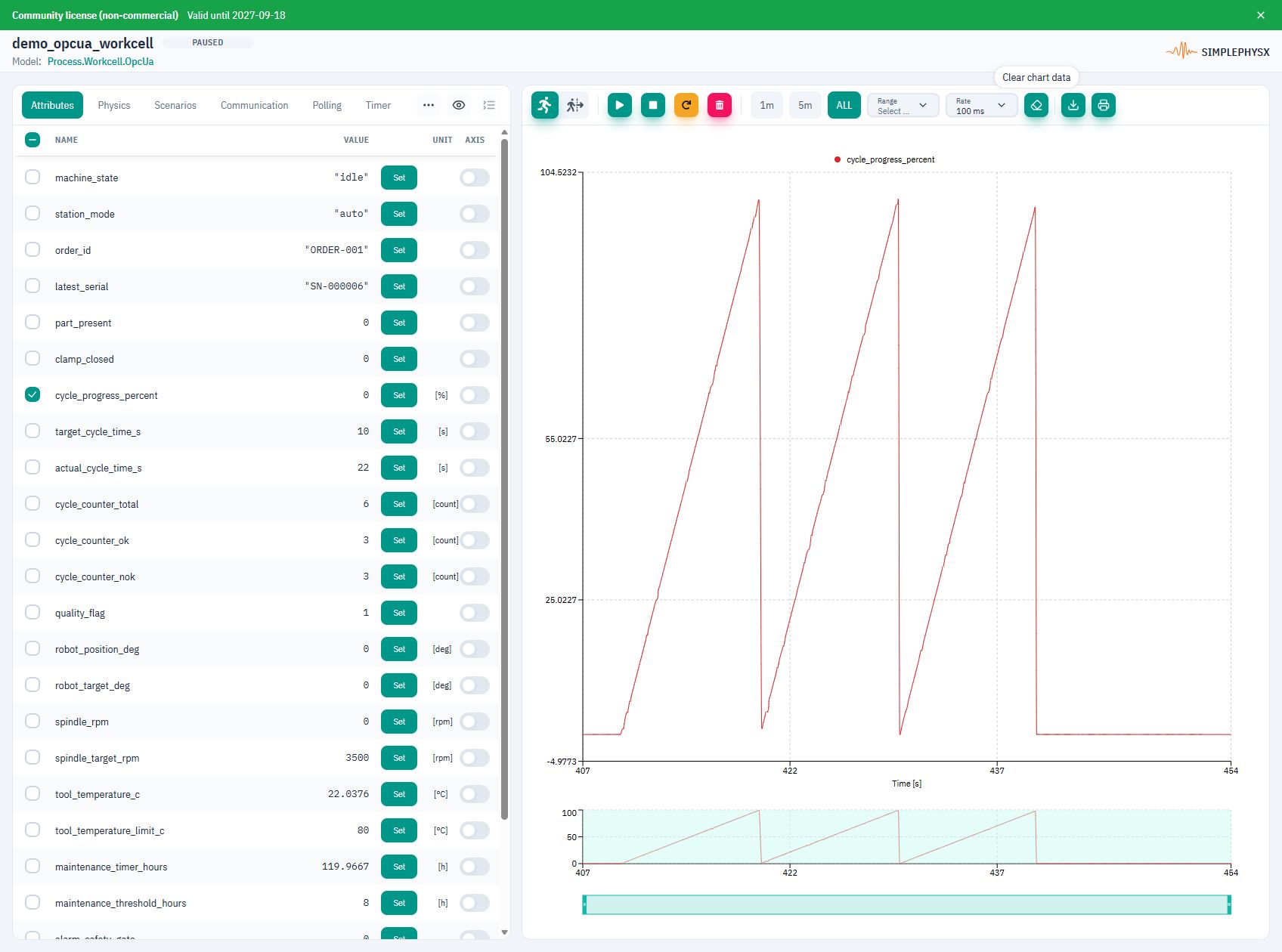
Restore target_cycle_time_s to 22 when finished, then choose Stop instance.
Protocol communication
Use these settings and messages with the library’s production workcell model.
- Client endpoint
- opc.tcp://SPX_HOST:4841/spx/workcell
- Namespace URI
- urn:spx:examples:opcua:workcell
- Local demo session
- Anonymous; NoSecurity; browse under Objects
Replace host placeholders with reachable addresses and use your published ports.
Swipe the table to see requests and replies.
| Address / message | Operation / payload | Expected reply |
|---|---|---|
Workcell / State | Read/subscribe; String; read-only | idle initially; running during auto_cycle; idle after it finishes |
Workcell / Cycle / Progress | Read/subscribe; Double; read-only | Progress in %, rising and resetting during operation |
Workcell / Mode | Read/write; String; send manual or auto | Write status Good; read Value back → selected mode |
Workcell / Motion / Robot / TargetPosition | Read/write; Double; target in degrees | Write status Good; target readback matches the request |
Workcell / Motion / Robot / ActualPosition | Read/subscribe; Double; read-only | Actual position moves toward TargetPosition |
Values describe this model’s nominal setup unless noted. Live measurements change as the simulation runs.
Example request and reply
Subscribe to State and Progress, then start auto_cycle in SPX. After the scenario finishes, set Mode to manual, read it back, then restore auto.
Connect: opc.tcp://SPX_HOST:4841/spx/workcell
Browse Objects → Workcell → Mode
Read Value → String "auto"
Write Value: String "manual" → Good
Read Value → String "manual"
Restore Value: String "auto" → Good
No reply or an unexpected value?
- SPX_HOST and its published TCP port must be reachable from your client.
- Paths are relative to Objects. Resolve namespace indexes and NodeIds by browsing the server; do not copy a numeric ns= index from another session.
- Write a String to Mode and a Double to TargetPosition. Stop overriding scenarios before a manual write/readback check. NoSecurity is this model’s local-demo configuration.
What you can test next
- Browse the rest of the workcell’s address space.
- Write to Workcell → Mode and read the value back.
- Observe client behavior during other workcell scenarios and alarms.
Using an AI agent?
Give your agent this page and the linked YAML. Resolve the registry name and reachable endpoint from your environment. Browse by namespace URI and node path; discover namespace indexes and NodeIds at runtime. Set target_cycle_time_s=10 for this exercise and restore 22 afterward. Subscribe before starting the 30-second scenario. Report the observed State and Progress updates. The model attributes are machine_state and cycle_progress_percent.
See the OPC UA adapter guide for binding and endpoint settings.